How it worksCloud or localAI keyLaunchersFAQSupportRoadmapAD.Kinora Get it on Boosty
All launchers

AD.Kinora

Game and screen recording with sound, streaming to YouTube and Twitch

Available on Boosty

Records a game or the screen with sound and streams to YouTube and Twitch. Skyrim and other games that many people had trouble recording are captured easily: pick the window and press F9.
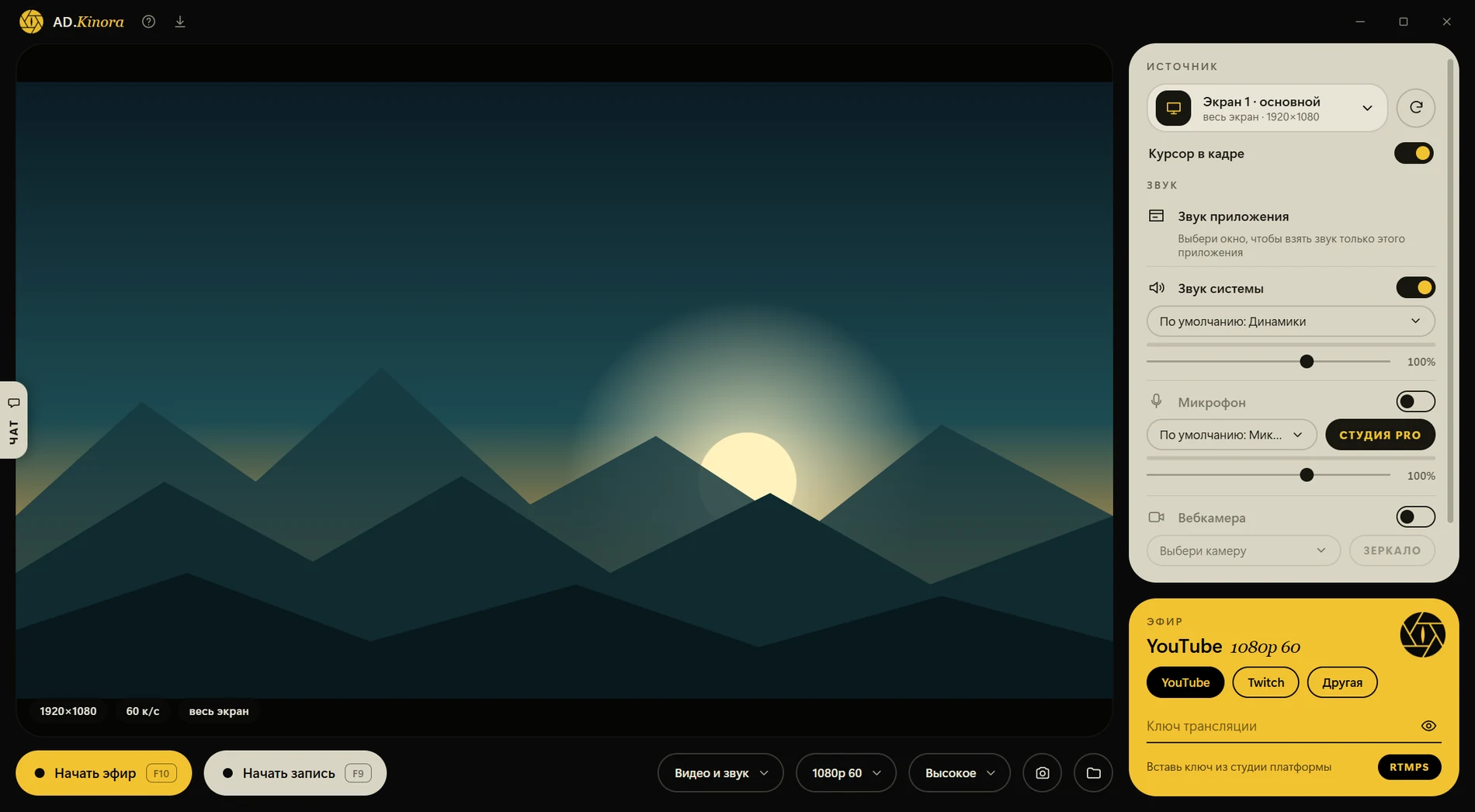
The AD.Kinora window

The program window: the preview picture and the device names are placeholders

What it does

Only the game’s sound

For a window the sound comes only from that application: no browser, messengers or notifications in the recording. System sound and the microphone can be added.

Light on the PC

With an NVIDIA card the recording goes through its encoder and the CPU gets a few percent of one core.

Streaming to YouTube and Twitch

Paste the key from the platform’s studio and the stream starts with a button or F10. The chat opens next to the picture, and you can read and write right in it.

A clean voice

The “Studio” button removes noise and echo from the microphone with a neural network and evens out the volume.

Keys that work in the game

F9 — record, F10 — stream, F12 — screenshot. They work while a game is open, and if an overlay or a game client has taken a key, the program still hears it.

Webcam in the frame

The camera window moves and resizes with the mouse, even during recording. Formats “Native”, 3:4 or 1:1.

The program window

What is where in the window

Hover or tap a list item and its place lights up in the window.

  1. 1

    Source

    Where the picture comes from: the screen or the game window. The “Cursor in frame” switch keeps or hides the mouse cursor.

  2. 2

    Sound

    Game sound (when a window is selected), system sound and the microphone, each with its own volume. The “Studio” button removes noise and echo from the microphone.

  3. 3

    Webcam

    It is switched on with a switch and the camera is picked from the list. The camera window moves with the mouse and resizes by its corner.

  4. 4

    Preview

    What goes into the recording and the stream. Bottom left: frame size, frame rate and source.

  5. 5

    “Start recording” and “Start stream”

    Record with the button or F9, stream with the button or F10. While recording or streaming, the time runs next to it.

  6. 6

    Format and quality

    Video with sound or sound only, frame size and rate, quality. On the right: a screenshot (F12) and the recordings folder.

  7. 7

    Stream

    YouTube, Twitch or your own server, and the stream key. The key is stored encrypted on your computer only.

  8. 8

    Stream chat

    The tab on the left: paste a stream link or a channel name and the chat opens next to the picture.

  9. 9

    “?” and the arrow

    “?” shows the version, the license and what the program sends when it checks for updates. The arrow checks for updates: a yellow dot appears on it when a new version is out.

The AD.Kinora window

The program window: the preview picture and the device names are placeholders

What you need

System
Windows 10 (version 2004 or newer) or Windows 11, 64-bit
Setup
None: unpack the archive and run AD.Kinora.exe. After that the program updates itself
Graphics card
NVIDIA gives the lightest mode. AMD, Intel or an older card work too: the recording runs on the CPU

FAQ

Frequently asked questions

Is an NVIDIA card required?
No. With NVIDIA, recording and streaming are the lightest. Without it (AMD, Intel or an older card) recording runs on the CPU and the load is higher.
Where are the recordings saved?
Into the “Videos\AD.Kinora” folder in your profile. The file name comes from the source and the time.
What resolution and quality are there?
From 720p to 2K (1440p) at 30 or 60 frames per second, and “Native” resolution up to 4K. Quality goes from “Small” to “Maximum” and holds even in fast motion.
Does the program window end up in a screen recording?
No. While a whole-screen recording or stream is running, the program window is hidden from capture. The rest of the time it can be screenshotted.
The program window does not open. What should I do?
The window needs Microsoft Edge WebView2 Runtime. It ships with Windows 11 and updated Windows 10; if it is missing the program says so and gives a link to install it.

Details

For those who know their way around

How the picture is captured
A window through Windows Graphics Capture, the whole screen through Desktop Duplication. A screenshot is taken from the source at its native size.
Encoding
With an NVIDIA card, ffmpeg takes frames from Windows capture and hands them straight to the NVENC encoder: Python and system memory are not involved. Without NVENC the recording runs on the CPU through x264.
Scaling and quality
If the picture has to be scaled down, the graphics card does it (CUDA, Lanczos), no CPU needed. The “Native” format has no frame recalculation: the lightest and the most accurate. Recording quality is constant, there is no bitrate ceiling.
Color
NVENC converts RGB to YUV using BT.601, so the file is tagged as BT.601: players, YouTube and editors read the tag and show the color correctly.
Sound and sync
Sound is recorded by a separate process, so a load on the picture cannot break or stretch the sound. When the two are muxed, picture and sound are aligned by the system clock. One application’s sound goes through Windows Process Loopback.
Streaming
A stream with NVIDIA goes the same direct way: capture, scaling on the graphics card and NVENC, the fps filter keeps the frames even, and a window that does not change (a browser, an editor) is redrawn to supply frames. If a window gives no frames for more than four seconds, the program switches the stream to a fallback mode by itself and says so.

AD.Kinora on Boosty

The program is in the author’s Boosty post.

Get it on Boosty